


AI
8. September 2026
GA4 Site Search shows you what people use the search function on your website for
Your website search function is where visitors type exactly what they want – in their own words – when the menu has let them down. In this article, we will show you how to access the information about what people search for in your site search.
Indhold
What GA4 Site Search is AI makes Site Search good The problem with the standard setup What you gain Things you can take with you How to get startedWhat GA4 Site Search is (short version)
GA4 Site Search is a feature in Google Analytics 4 that automatically collects internal searches if you have Enhanced Measurement enabled. In other words, a feature that captures “what people search for in your site search.”
Click here if you want to see how it works – NOTE: nerds only!
GA4 Site Search only gets interesting with a Windsor integration to an AI model
GA4 Site Search has existed since autumn 2020, so there is nothing new about it. The reason for this post is that, with the new possibilities enabled by widely used AI models, you suddenly get far more insights from the data GA4 Site Search gives you.
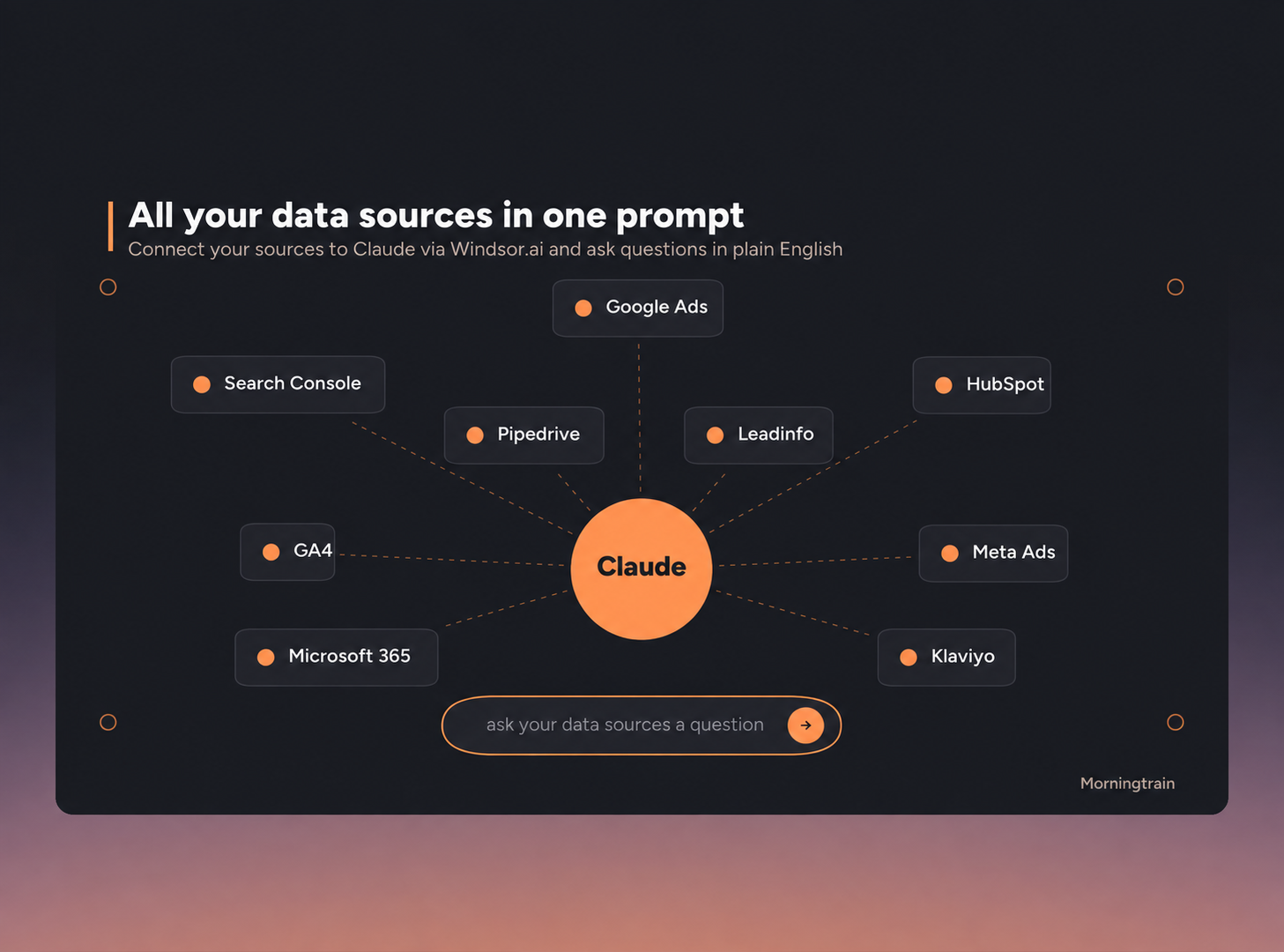
You can connect anonymised data from GA4 to your Claude or ChatGPT via Windsor, giving you access to “chat with your data”. Suddenly, you can ask qualitative questions about how your search function is used and get concrete action points.
The problem with the standard Site Search setup: a list of search terms is not an insight
If you do not use Site Search together with the ability to chat with your data, the problem is that you are just looking at a table. “concrete corrosion protection: 218 sessions”. “rust treatment: 403”. Fine numbers. But they do not tell you what to do differently.
What is worse: the interesting part of search data is never at the top of the list. It is in the 2,800 different terms that each have four sessions, in the typos, in the colour-and-size combinations, in the searches that end with people leaving the site. A human cannot make sense of that manually.
But with the Windsor integration to an AI, you can have the searches themed and sorted, and suddenly you can look at a few high-level topics and understand where the biggest pain points and optimisation opportunities are.
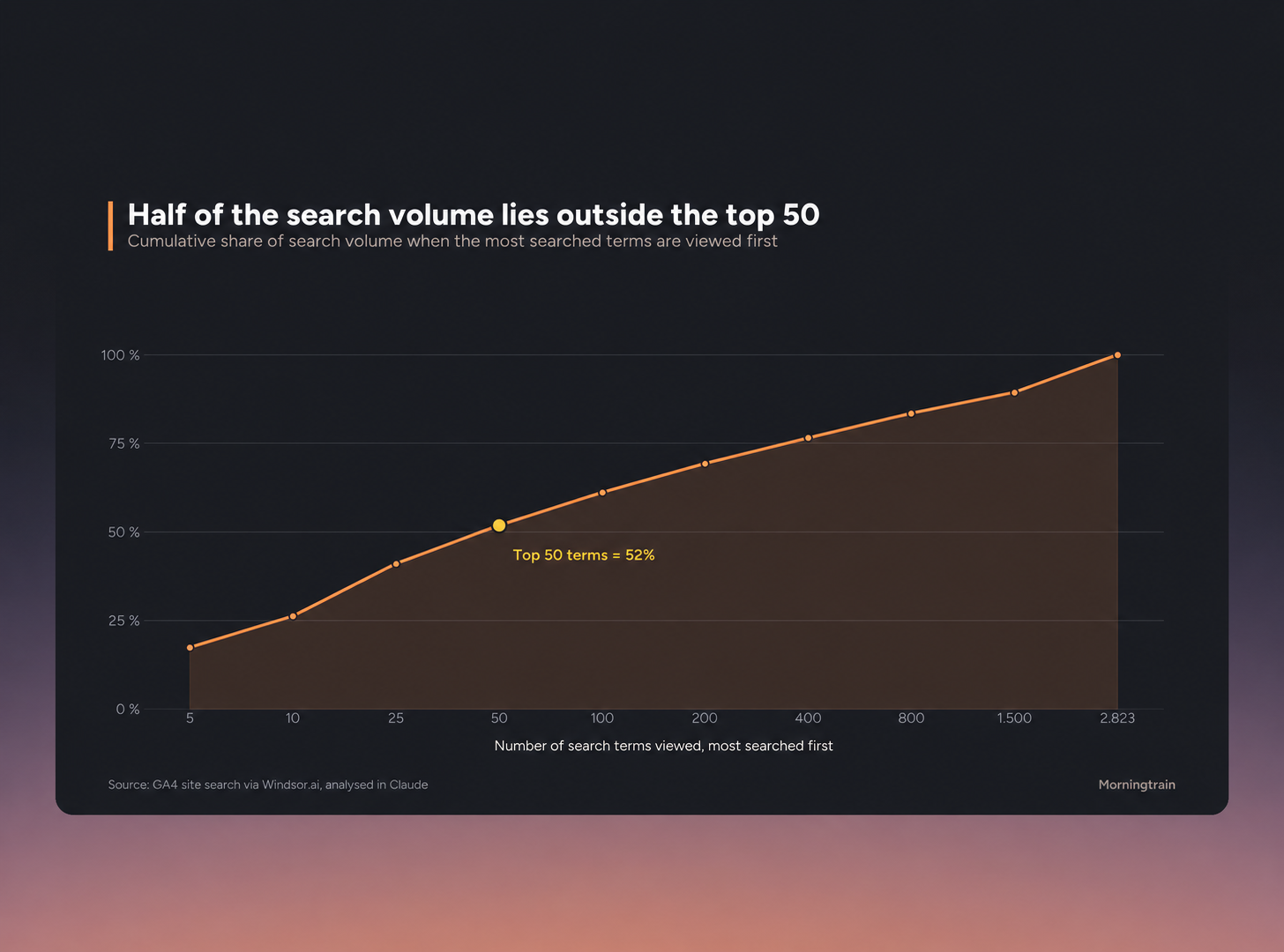
The curve below is an example from a case with more than 12,000 searches. If we read the 50 most searched terms (themed with Claude), we cover half of the search volume (52%). The other half is spread across 2,773 terms you will never get through.
That makes it easier to spend time on what actually moves the needle.
What has changed: you can ask the data instead of reading it
We have previously written about how to connect your marketing data directly to Claude via Windsor.ai and chat with it (see the post about chatting with your data). The same setup gives you access to GA4’s search dimension.
The difference is not that you get the numbers faster. The difference is that you can ask a question like:
“Here are all internal searches from the last six months. Group them by what the user is trying to do, and tell me which ones point to a navigation problem, which ones point to a gap in the product range, and which ones point to a search engine that is not working.”
And get an answer with a diagnosis, a prioritisation, and a suggestion for what to do. Across thousands of unique search terms. In under a minute.
That is the shift from reporting to advice.
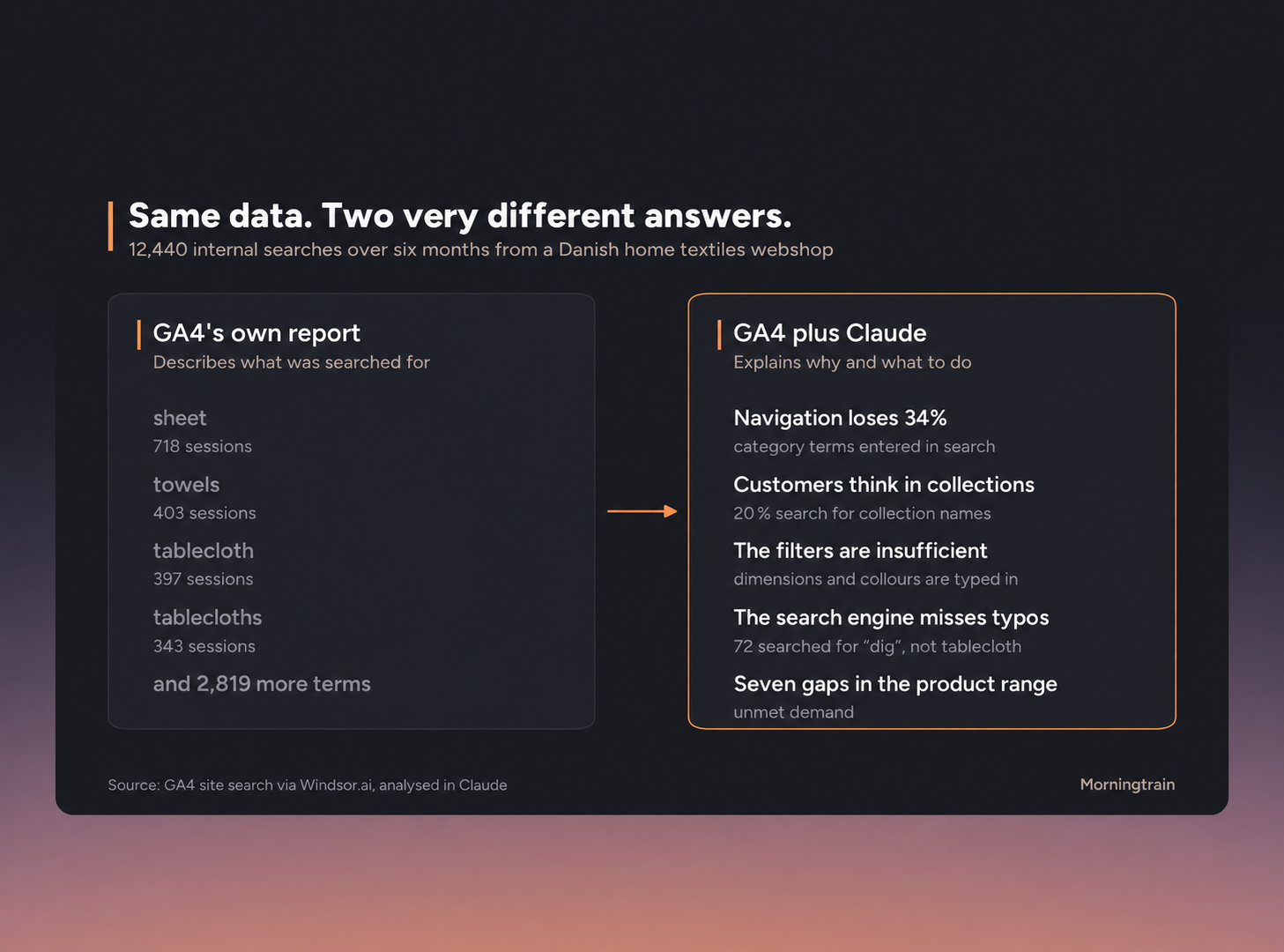
Example: 12,440 searches on a Danish site
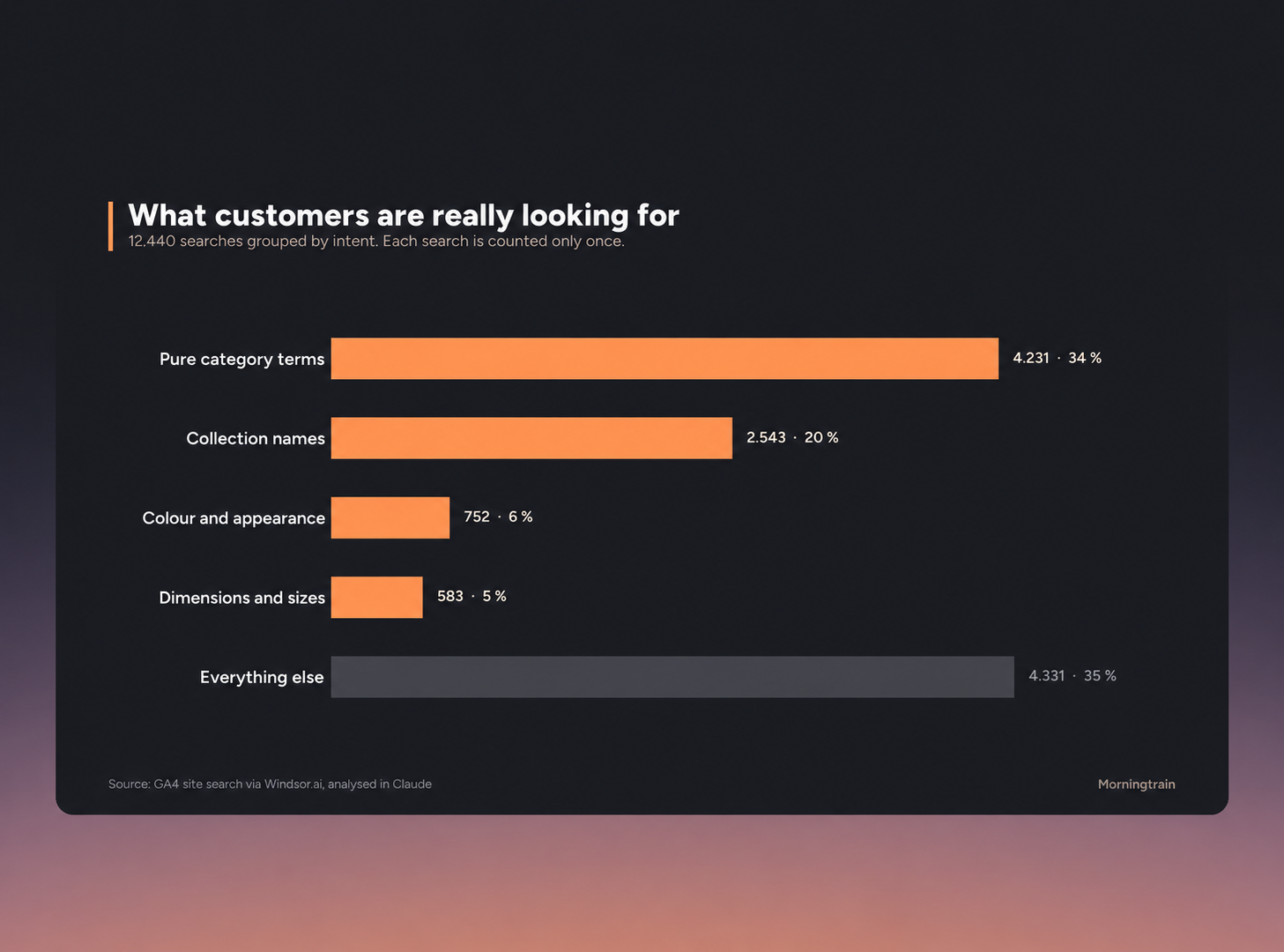
The example below uses a dataset of: 12,440 search sessions across 2,823 different search terms. Out of 219,154 sessions in total, 5.7% use the search field.
Five diagnoses came out of it. None of them were in GA4’s report
- The menu loses a third of the searches
- Customers think in series; the site thinks in categories
- Filters are missing, so people use the search field as a filter
- The search engine does not understand Danish
- Failed searches show what is missing from the product range
Things you can take with you – no matter what you sell
The example is an online shop, and it is easy to read. But the search field is even more valuable on a technical B2B site, because it is where buyers write down their own words:
- Searches your sales team can use tomorrow. If you combine your search data with Leadinfo, you do not just know what was searched for—you know which company searched.
- Part numbers and type designations. If people search for part numbers that do not exist on your site, are they searching for a competitor’s number or a number from an old catalogue? That is direct input for your cross-reference list.
- Specifications instead of product names. “24V”, “IP67”, “stainless 316”. The customer knows what it needs to do, not what you call it. That is a filter structure waiting to be built.
- Documents. Searches for “data sheet”, “CE”, “installation instructions”, “spare parts drawing” show that your documentation is buried too deep. It is also one of the strongest indications that a visitor is in an actual purchasing process.
How to get started
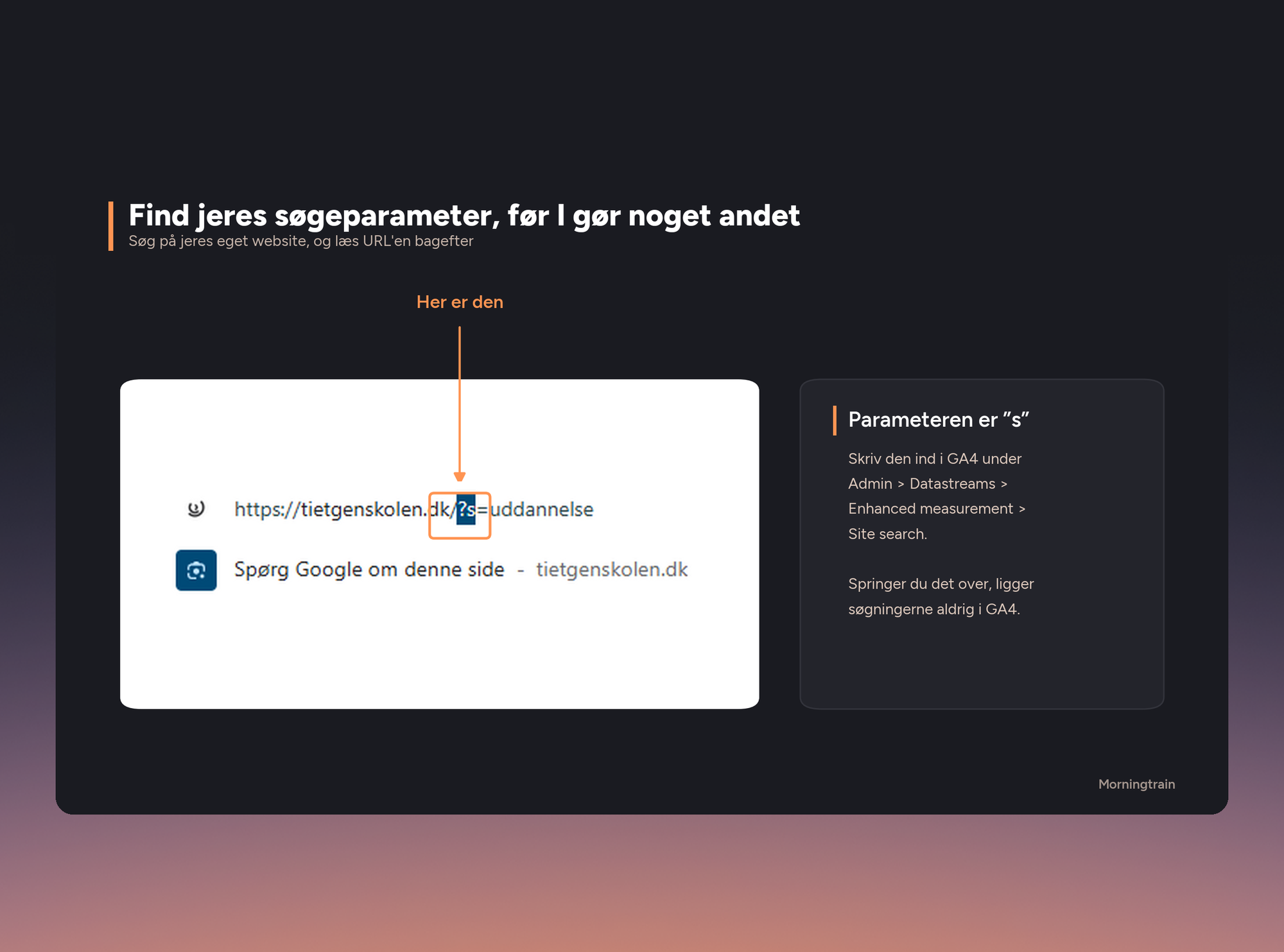
- Check that data collection works. GA4 > Admin > Datastreams > Enhanced measurement > Site search. Add your own search parameter if it is not the default.
- Export six months of data, not one month. The long tail is the whole point—you need enough data to feel confident making decisions based on it.
- Connect GA4 to Claude via Windsor, and ask the question as a diagnosis, not as a report. Ask for causes and actions, not a top 20.
- Share the list with the person who owns the product range. Failed searches are purchasing data, not marketing data.