


AI
7. April 2025
Automatic keyword categorization with AI: Save time and gain a clearer overview for SEO, Ads, and content
Learn how, in just a few steps, you can use AI to automatically categorize your keywords in Google Sheets and get a structured overview you can use for SEO, Google Ads, and content work.

Save time and start from a more data-driven foundation
Have you ever sat with a large keyword file and wondered how to even begin sorting the keywords? Which keywords belong in the same category? What should be subpages, filters, or ad groups?
In this post, we show how we used the AI Claude to write a Google Apps Script that automatically categorizes keywords directly in Google Sheets. The solution makes it possible to:
- group keywords by main category, subcategory, and filtering options
- save time on manual work
- get a more data-driven and structured foundation for your work with SEO, Google Ads, and content
What do you gain from using AI to categorize your keywords?
Here is what automatic categorization can be used for:
SEO structure and content plans
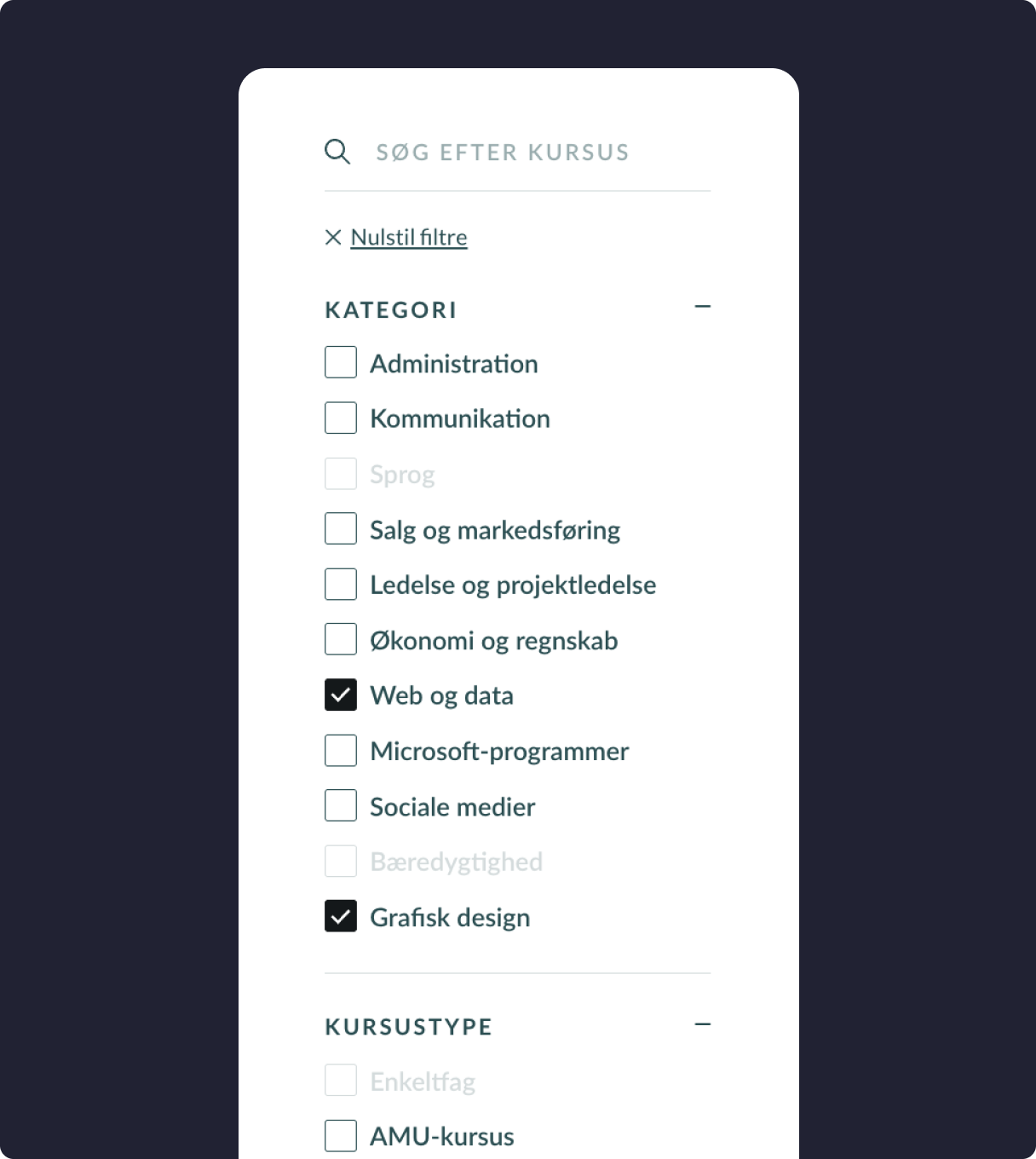
When your keywords are grouped into, for example, “E-bikes”, “Accessories”, and “Children’s bikes”, it quickly becomes clear where you are missing landing pages and which pages should have which filters. You can also more easily spot which search intents you cover and which ones you miss.
Building webshop categories and filtering
If you work with e-commerce, the output can be used to structure your product catalog: Which main categories should be shown in the menu? And which filtering options (e.g., size, color, type) make sense for users?
Google Ads structure
You can use the output to group keywords into ad groups, so you match users’ search intent more precisely and increase relevance in your ads.
Data-driven overview
The AI works consistently and bases its assessments on semantics and context not gut feeling. This provides an objective foundation for further analysis, and you avoid bias and typos.
Scalability and efficiency
Whether you have 100 or 10,000 keywords, it takes the AI just a few seconds to process them. This means you can spend your time on strategy and content instead of cleaning up spreadsheets.
How to get started – step by step
Would you like to try getting Claude to categorize your keywords directly in Google Sheets? Here is how:
1. Get access to Claude
Create an account with Anthropic and get your personal API key. This is what Claude needs to analyze your data.
2. Use this prompt to have Claude write the code
You need a Google Apps Script that sends your keywords to Claude and fills in three columns with:
- Main category (e.g., “Bike”, “Equipment”, “E-bike”)
- Subcategory or brand (e.g., “Children’s bike”, “Basket”)
- Variant or filter (e.g., “Size”, “Type”, “Placement”)
👉 Here is the prompt you can paste directly into Claude:
I have a list of keywords in column A in a Google Sheet. I would like you to help me write a Google Apps Script that automatically analyzes each keyword and fills in three new columns:
- Column B: Main category
- Column C: Subcategory or brand
- Column D: Variant or filter (e.g., size, color, type)
The script must send each keyword to Claude via your API and return a JSON response with the three elements.
Write the code so that it:
- Can be added directly as an Apps Script in Google Sheets
- Uses a function that I can call myself from a menu button in the sheet (e.g., “Start Categorization”)
- Has a place in the code where I can insert my own API key
The output must be inserted into columns B, C, and D on the same row as each keyword. Reply with the full script and instructions on where the API key should be inserted.
3. Insert the code into Google Sheets
Once you have received the code from Claude, open your Google Sheet and select:
Extensions > Apps Script
Create a new project and paste in the code you got from Claude.
4. Add your API key
In the script, find the line with CLAUDE_API_KEY and replace it with your own key from Anthropic.
5. Run the script
Once you have saved the project, return to your Google Sheet. You will now see a new menu item—for example, “Categorization” > “Start Categorization”. Click it—and the AI will handle the rest.
6. View the result
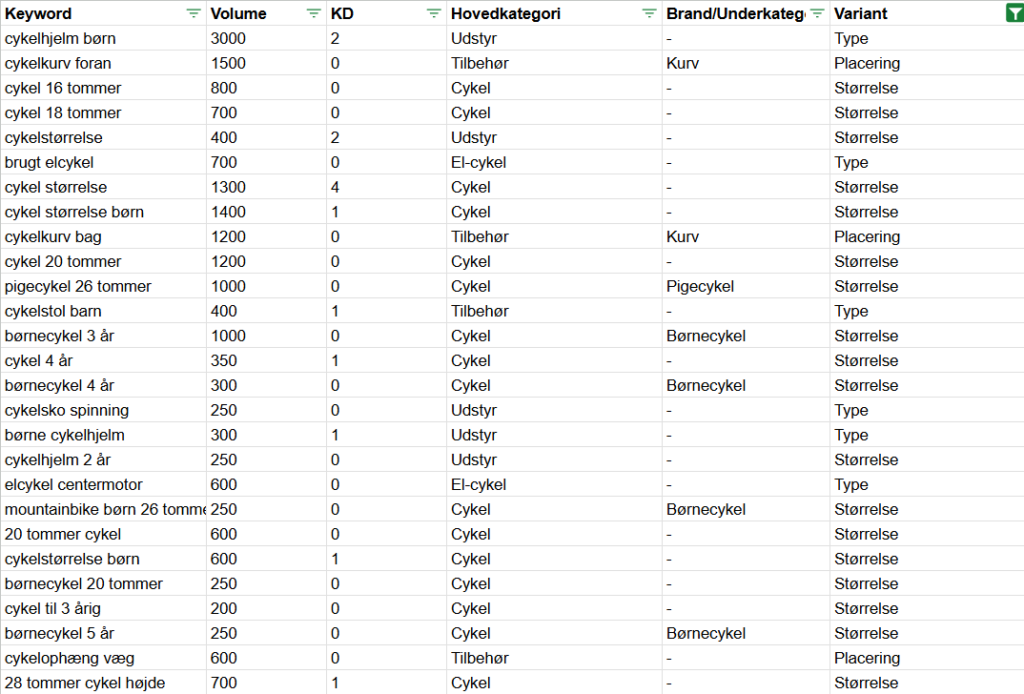
Each keyword is analyzed and filled in with:
- A relevant main category
- A possible subcategory or brand
- A possible variant type such as size, color, or similar
The result is a structured overview you can use to build an SEO structure, plan ad groups, or optimize your content strategy.
Ready to try it yourself?
By using this method, you get an automated solution that can save you hours of manual work and give you a more professional foundation for your marketing efforts.