


Digitalization
19. September 2022
Guide: How to add ‘FAQ schema’
In this guide, we will cover FAQs (frequently asked questions). FAQ schema is used to enhance your SERP and allows you to display more information in search results, increasing user engagement and your rankings.

You add ‘FAQ’ schema to your website by doing the following:
- You must have at least 2 questions that you answer on your landing page.
- The questions and answers must match the content on your website exactly.
- Download the template you will find in this post.
- Leave everything written in PURPLE exactly as it is.
- Everything in RED must be edited to match your information.
- Select all text and copy it.
- Insert the information between the tags on your website.
- Well done – that’s it.
This post is part of a “mini-series” of guides on how to add structured data to your website.
We will cover the following schema.org types:
- Local business
- Review
- FAQ (this post)
*Example of an FAQ result for the search “what does some mean”
However, there are a few rules you must follow before Google will show your FAQ.
- You must have at least 2 questions in your schema.
- The questions and answers must match the copy on your website exactly! That is why it is best to copy and paste the question and answer into the template without making changes to the content itself. Even simply adding an emoji to the question in the template, when the emoji is not on your website, can prevent it from being shown in the SERP.
Before we get started, it is important to say that Google operates entirely in its own world and WE cannot promise that Google will show all your FAQs, but we can say that if you have implemented both “star ratings” (which we covered in the last guide) and FAQ, Google will only show one of the two. In the vast majority of cases, it will be your “star ratings”.
Once again, it is time to stay focused. So if you need a bit of fresh air, now is the time.
- Download this template (opens in a Word document)
- Have the landing page where you want to add FAQ schema ready. The page must have at least 2 questions and answers.

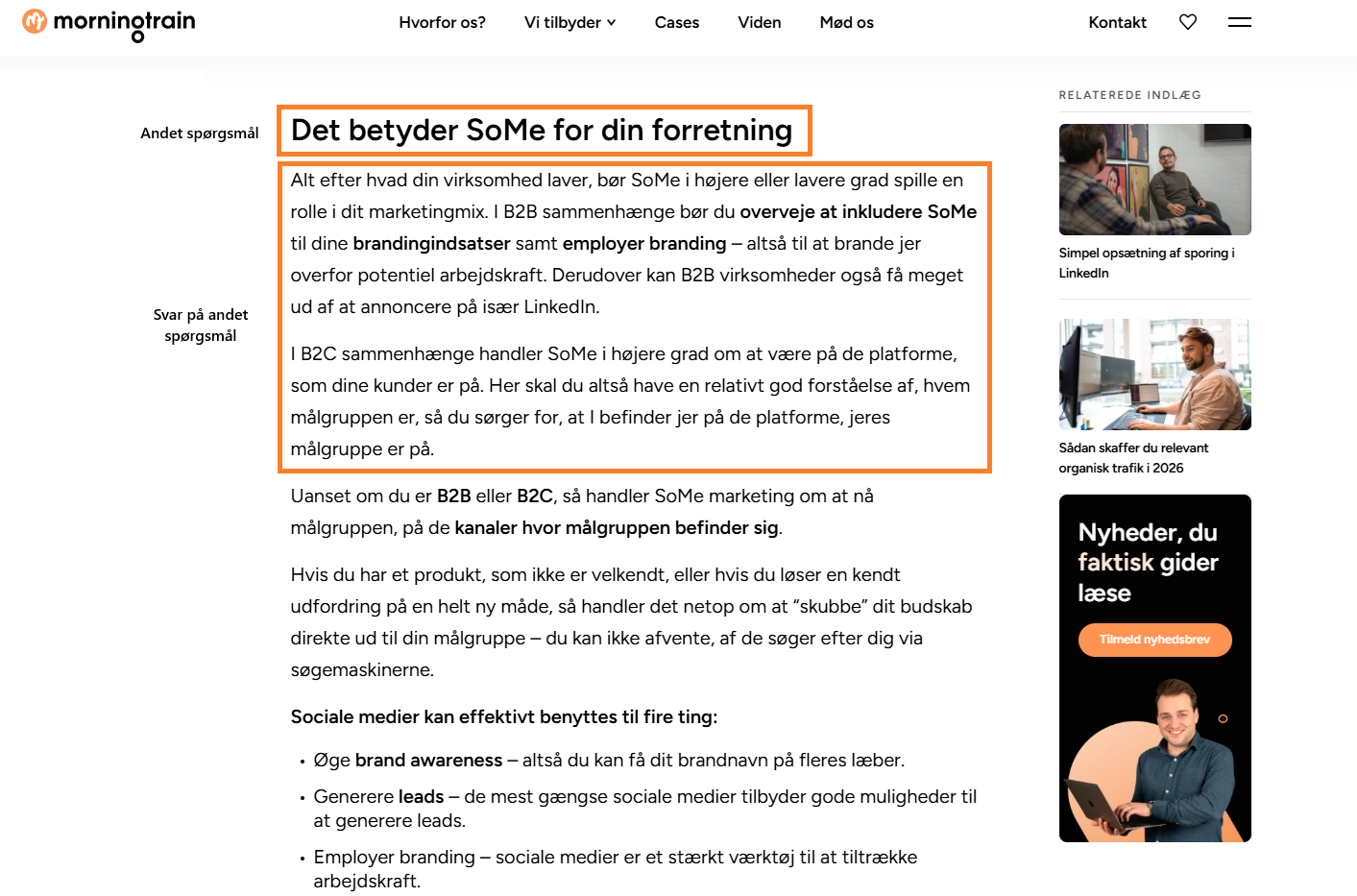
*Example from our “what does some mean” blog post
- Everything you see in PURPLE must remain exactly as it is. Note: it is important that neither commas, quotation marks, nor anything else written in PURPLE is deleted.
- Everything written in RED must be edited to match the information from your landing page.
- When filling out the template, you must not press ENTER at any point, as it changes the code and it will no longer work.
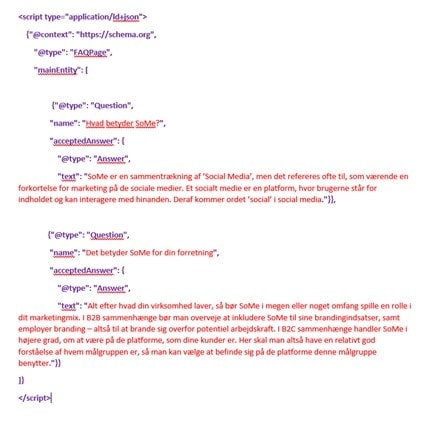
We are nearing the end—take one extra look at the text you have inserted.
- Select all and copy.
- Insert what you copied between the tags on the page where your questions and answers are written.
Great work! Now you can also add FAQs to your Google search results.
If you would rather use a WordPress plugin where you can add the script to the header, see the example below.
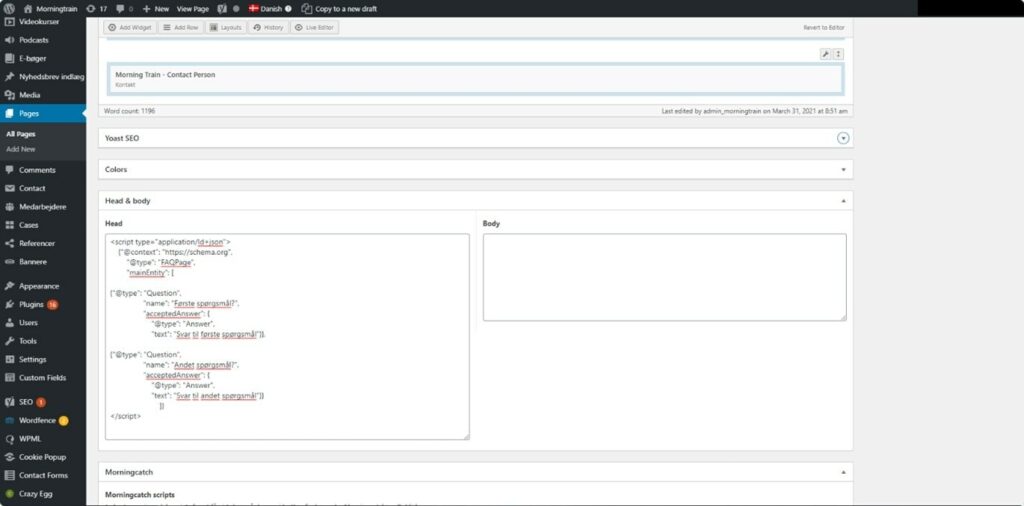
Above, you can see an example where we use a custom solution built by our developers, but you can also download a free plugin such as Head & Footer Code or any other plugin that lets you add scripts to your site header.
Read more about the different ways you can add structured data to your website in this blog post.
If you need a more detailed explanation of how you can add structured data to your website, you can read this blog post.
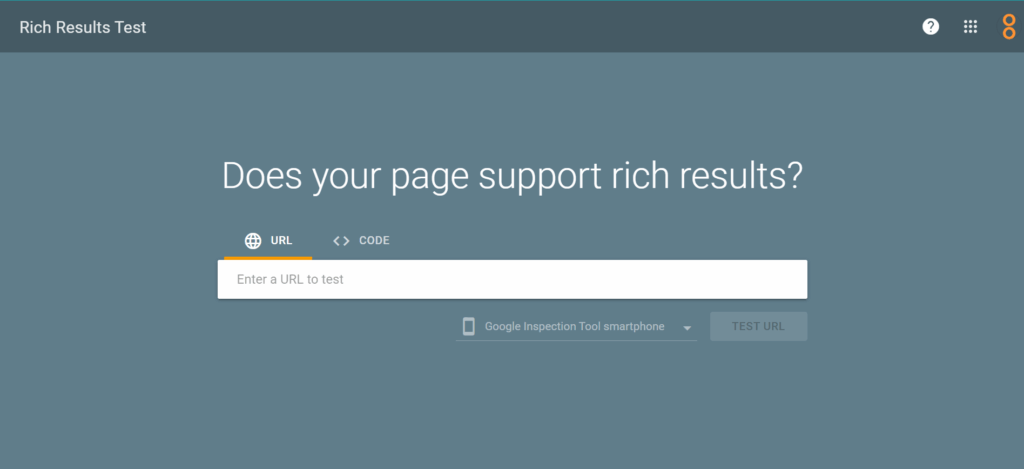
After you have filled out the template and added it to the site header, go to: https://search.google.com/test/rich-results
Copy the link to your website or the page where you added the script, paste it into the search field, and click the “Test URL” button.
We hope our guides have been easy to follow and have helped you on your way to conquering rankings in Google’s SERPs.
*Yes, it’s true it looks a bit wild with all that text 😉
If you came directly to this guide, we recommend that you also take a look at local business schema and review schema.