


Digitalization
17. August 2022
Guide: Add structured data to your website
Structured data increases your visibility and click-through rate on Google, ensuring that your website is categorised correctly. But how do you add it to your website so Google can read and understand it? This guide will show you.

Content
3 methods Manually prepared Autogenerated mark-up WordPress plugins Validating schema Useful links3 different ways to add structured data to your website
In short, you add structured data by semantically marking up (also called “semantic markup”) text and images on your website. In other words, you need to mark up your website’s HTML.
However, you do not need to mark up your website’s HTML manually; you can do it automatically if you are not entirely comfortable with markup. Follow along here to learn more.
This guide shows you 3 different ways to add structured data to your website. The guide shows you how to:
- Manually add structured data
- Auto-generate semantic markup
- Use plugins that add structured data to your WordPress site
For semantic markup, you need a data format and a vocabulary.
Data formats make it possible to mark up text and images on the website as machine-readable data. The data format specifies, using certain words or characters, specific rules for how to mark up structured data. Google, which this post is based on, reads and understands the following data formats:
- RDFa (Lite)
- Microdata
- JSON-LD
To describe the things i.e., the data we are talking about, we use a vocabulary.
The schema.org vocabulary is one of the most widely used, and it is published by and supported by the largest search engines (including Google).
When you add structured data, you need to decide which data format you want to use. Whether you choose RDFa Lite, microdata, or JSON-LD is, in theory, irrelevant; Google understands them all. However, Google prefers JSON-LD.
On schema.org, you can see various examples using the three data formats, but here are three examples based on the types LocalBusiness and PostalAdress:

Example without semantic markup

Example of semantic markup with microdata

Example of semantic markup with RDFa Lite
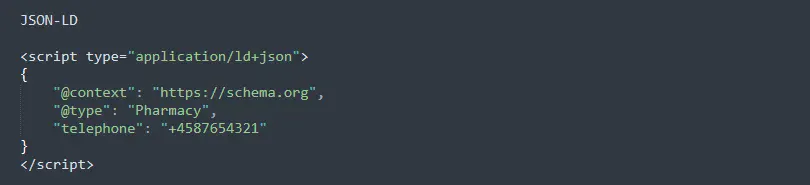
Example of semantic markup with JSON-LD
As you may have inferred from the examples above, the main principle of semantic markup is that you specify the type and then define relevant properties for that type. In this case, the types are LocalBusiness and PostalAddress. You can see which properties belong to LocalBusiness and PostalAddress at schma.org/LocalBusiness and schema.org/PostalAddress.
It is also worth noting that you can find even more specific types of “LocalBusiness”, such as “FoodEstablishment” (schema.org/FoodEstablishment), which can in turn be broken down into even more specific types, such as “Winery”, “Restaurant”, and “BarOrPub”.
This means you can mark up your business (and all other types) very specifically.
How to manually add structured data to your website
When adding your schema manually, you must first decide which type best fits your business. Then fill in as many properties as possible and add your schema to your website or specific subpages.
For example, if you have chosen LocalBusiness and you are using JSON-LD, you must manually add it to your website header. That way, your company information will be available across your entire website.
More specific structured data, such as product review, FAQ, or article, must be added to the header of the exact subpage where this information appears in your content. In other words, you should only add structured data for FAQs or product reviews on the subpages where that content is available to visitors.
If you add irrelevant markup to your page, Google will ignore it, and you will unfortunately just be wasting your time.
How to add auto-generated structured data with Google Markup Helper
If manually adding structured data seems overwhelming, you can auto-generate the semantic markup using Google Markup Helper, which uses a small subset of types and properties from schema.org.
Benefits of Markup Helper
Markup Helper is an excellent tool if you do not want to add structured data manually. If you only need to mark up very basic information such as your company address, opening hours, or add reviews, the tool is ideal for the purpose.
Drawbacks of Markup Helper
The drawback of Markup Helper is that it currently includes only a very limited number of types and properties. Therefore, you cannot mark up much more than very basic information about your business or your website. The tool is also not particularly specific; if you want to mark up your business as, for example, a florist (schema.org/Florist), it is not possible with Markup Helper.
If you want to be specific and have access to the full range of properties, you should therefore mark up manually or use a relevant plugin if you have a WordPress website (more about plugins in the next section).
How to add structured data to your WordPress website with plugins
There are several WordPress plugins that add structured data to your website. Like Google’s Markup Helper, the available plugins mainly mark up the most basic information.
Some plugins are developed for a specific purpose, such as food blogs where recipes need to be marked up (cooking time, nutritional breakdown, image, rating, etc.).
Here is a selection of plugins you can use to add structured data to your WordPress site:
- Schema App Structured Data (uses all of schema.org and can therefore be specific)
- All In One Schema.org Rich Snippets (marks up content such as recipes, reviews, products, articles, etc.)
- Header Footer Code Manager (easy addition of scripts to any page on your website)
Validating structured data – does Google understand your markup?
Once you have added structured data to your website, you need to ensure that you have marked it up correctly so search engines can read and understand your data. I recommend using Google’s validation tool, which they call Rich Results Test, to test your markup.
It varies how long it takes before your structured data appears in Google search results. (And, as with so many other things, Google provides no guarantee that your structured data will be shown in the search results but do not let that hold you back).
You made it! You have now made it through the guide.
Take a look at the links below for useful resources on structured data and semantic markup you are well on your way.
Links to useful pages about structured data and semantic markup
- About structured data
- Google’s guide to rich snippets
- Google Markup Helper
- Rich Results Test
- schema.org